
Pixelizer
I wanted a way to convert smooth vector art with limited colors into pixel art. Or something that could shrink existing pixel art to a lower resolution seamlessly.
You can lower the resolution in photoshop and set resample to “Nearest Neighbor”. But the problem with that is it will add new colors to your palette wherever two colors meet. I found some online tools that had the same issue. I wanted something that would retain a fixed color palette when doing this.
Enter Pixelizer!
This tool allows you to scale down an image, retaining that image’s original color palette.
While the original intention was for this tool to turn a jpeg of vector artwork into low-res pixel art, it also works great on typography, and can get you usable starting point from detailed artwork and photos.
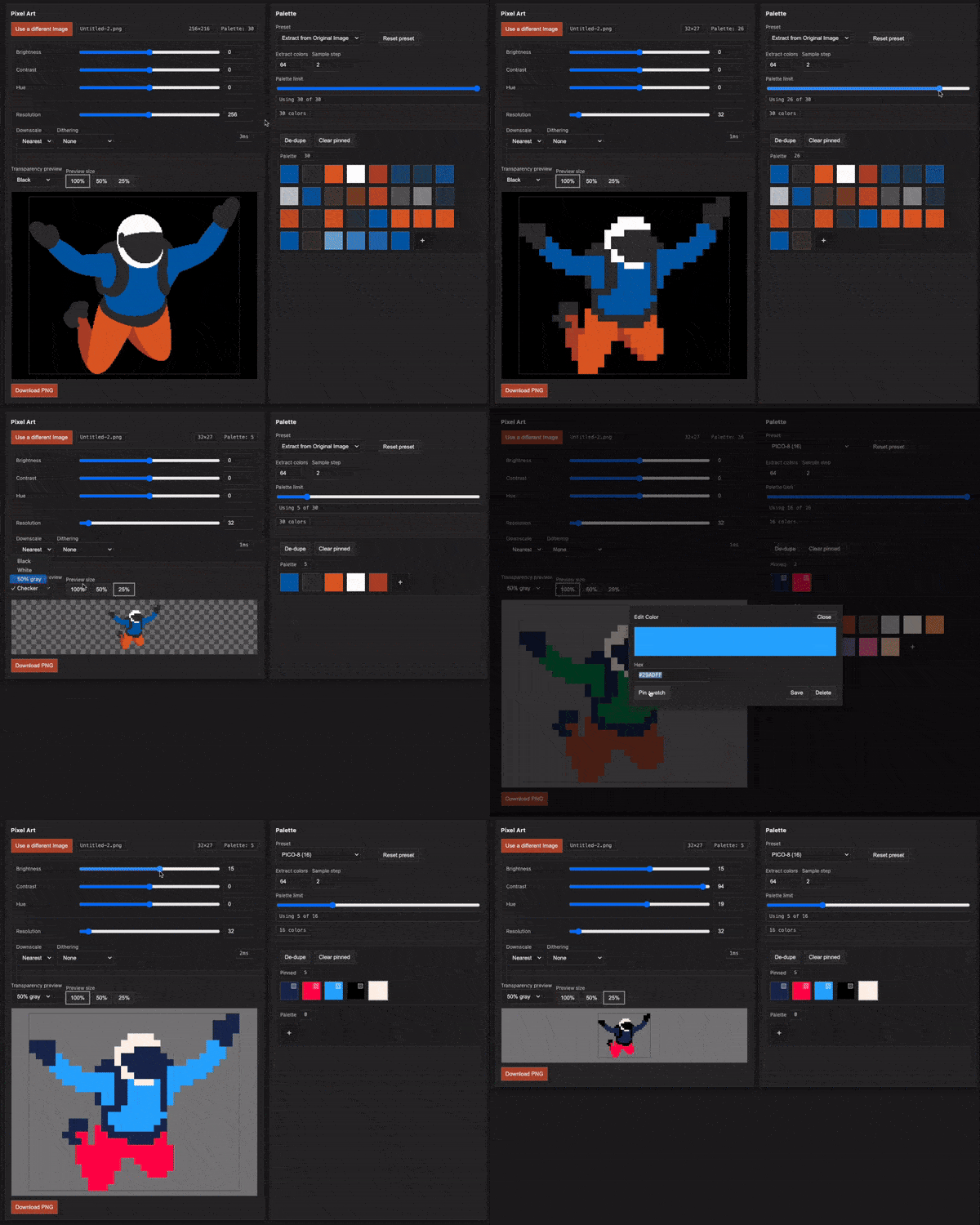
Convert Vector Artwork
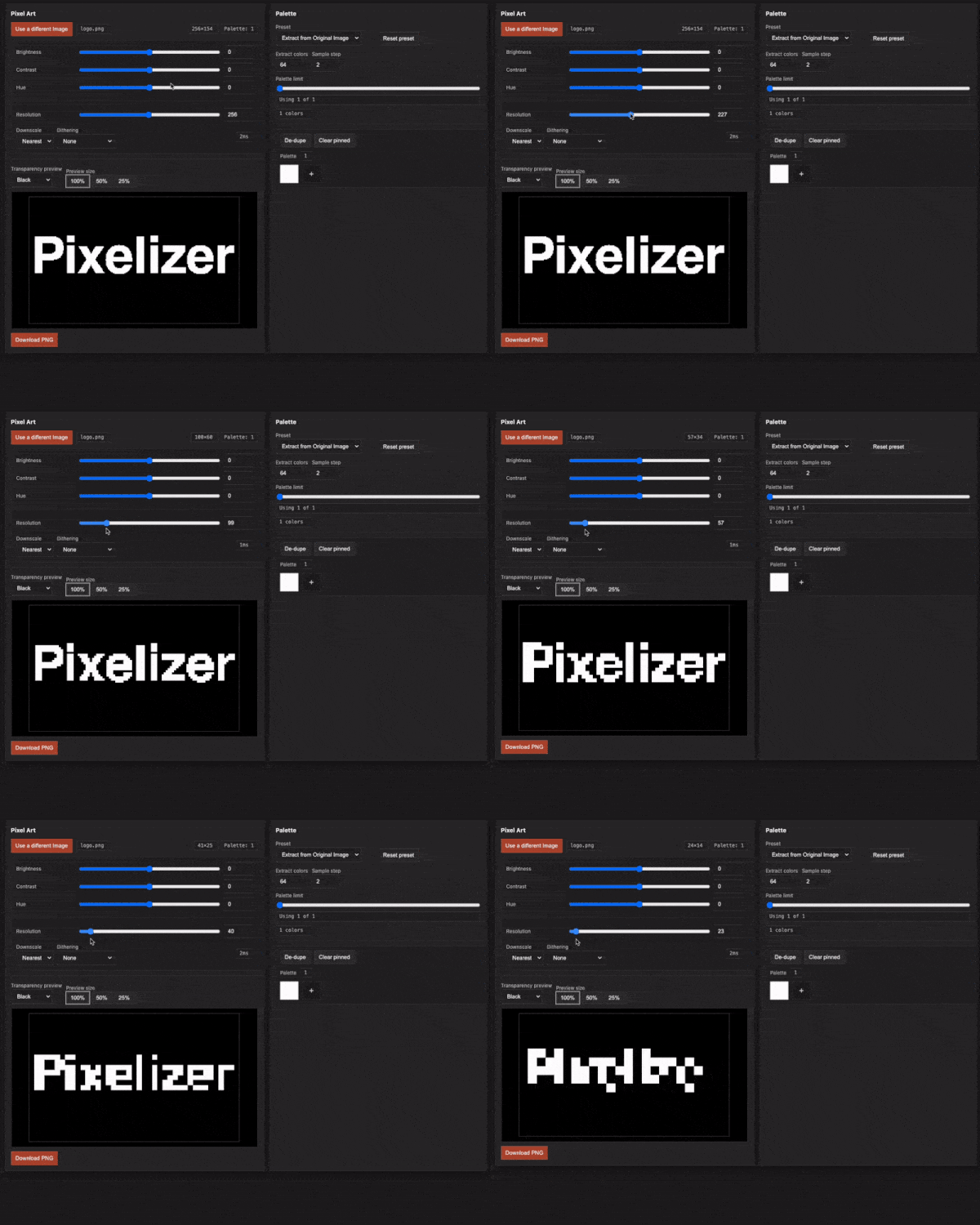
Pixelize Your Typography
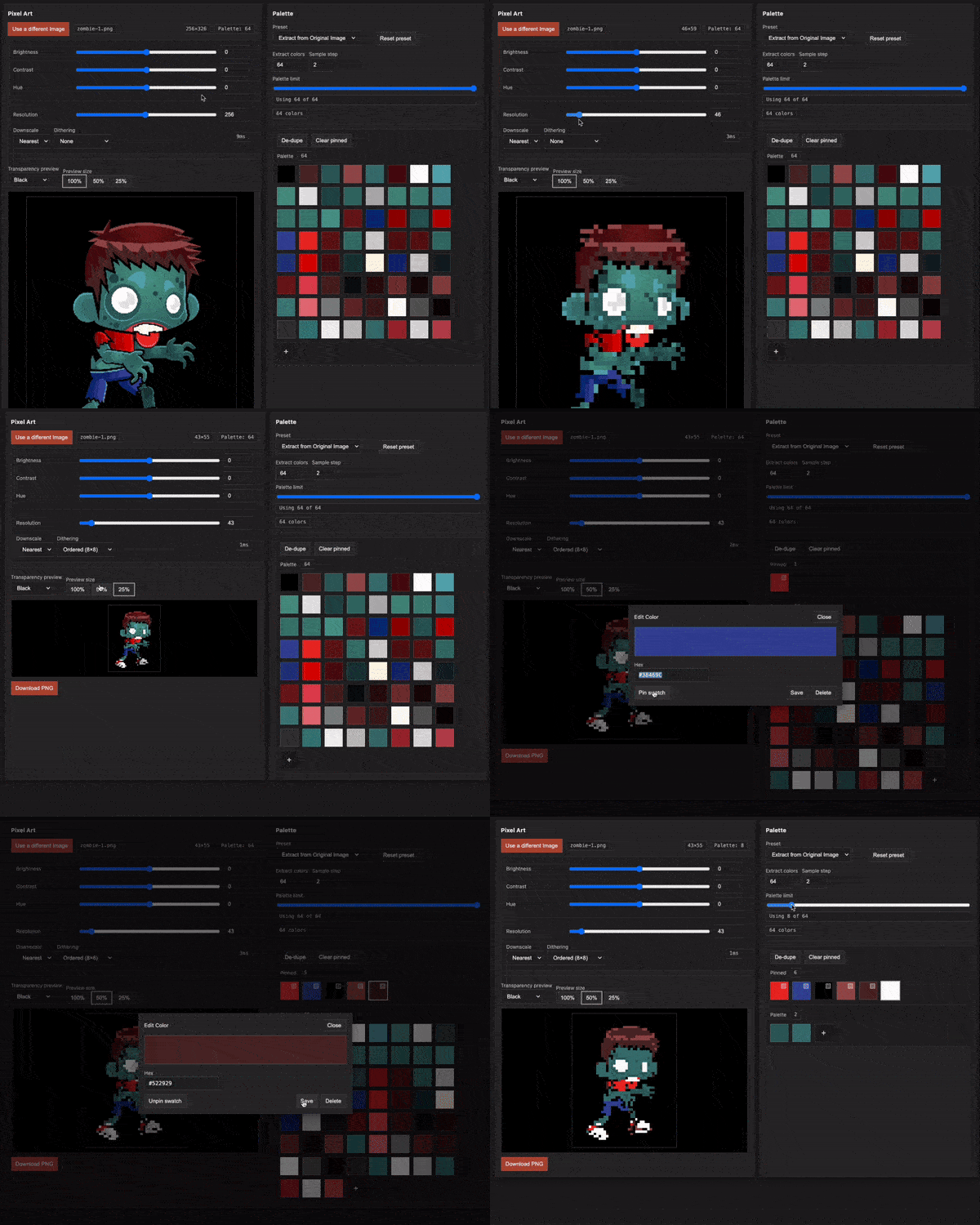
Down-res your Sprites
Turn A Photograph Into A Starting Point
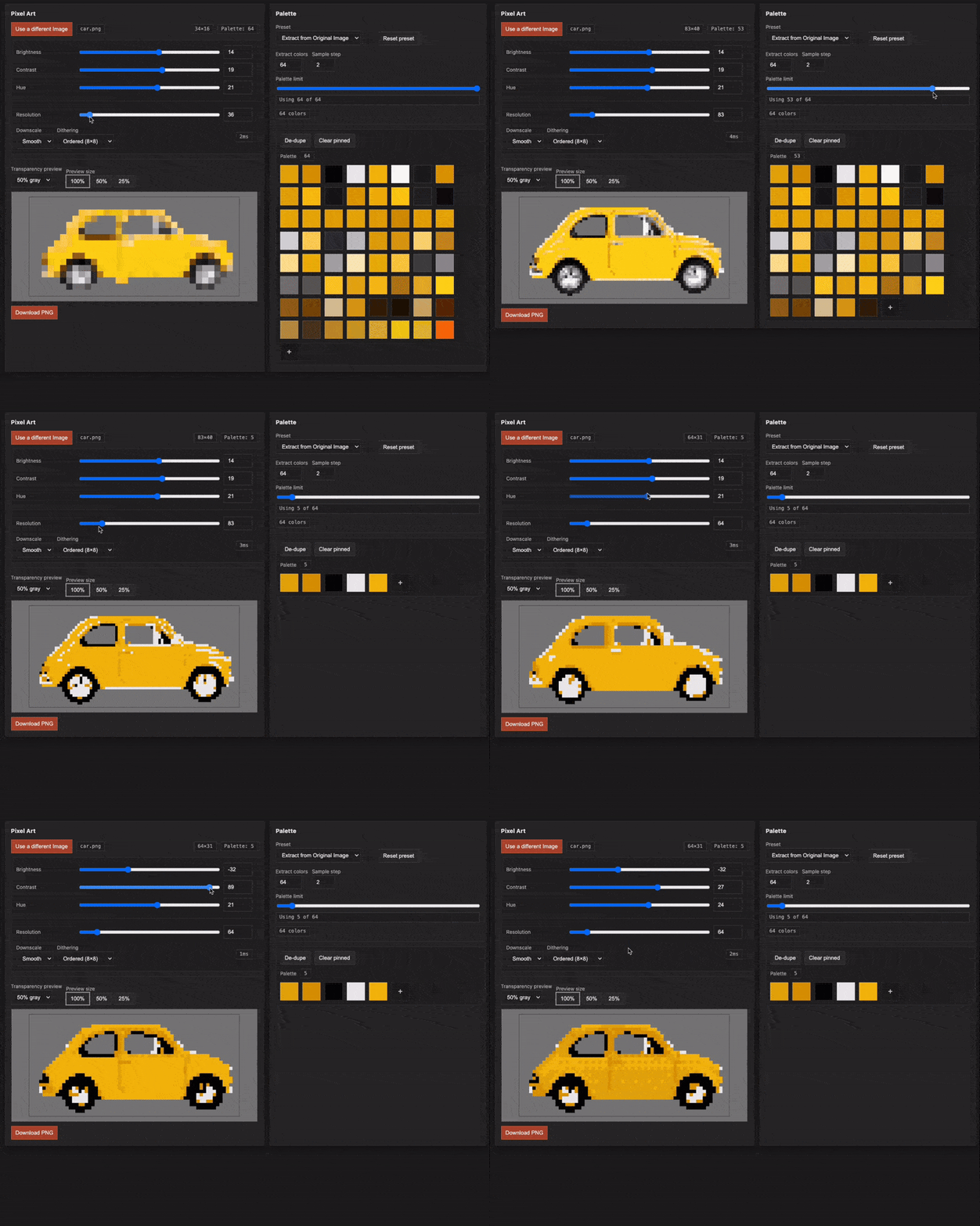
How to use:
- Upload the image you want to Pixelize.
- If you want to use a different color palette, change the color palette preset.
- Adjust the pixel-width of your image to the intended resolution.
- Adjust the color palette.
- Adjust the brightness, contrast, and hue of the original image to change the way the palette is applied.
- Try other downscale settings or dithering to retain more detail.
Color Palette Editing:
- By default, the tool will generate a color palette from the uploaded image. The palettes is ordered from the most prevalent colors to the least. You can tell the tool how many colors you’d like to extract from the image, or leave it at the default 64 colors and limit the palette after extraction.
- You can change the preset to “Extract from different image” to upload a different image to base your palette on. This means you can upload another sprite from your game, a screenshot of a color palette, or a photo and apply that palette to the pixelized image.
- There are also a couple built-in palette presets, including the Pico-8 palette.
- When you move the “Palette limit” slider, the lesser used colors at the end of the palette will be removed. This can result in some of the colors you want, accidentally being removed. To remedy this, you can select any color in your palette and click a “Pin” button to pin it to the top. You can also manually select and delete any color in the palette.
- If it’s important to stick to very specific colors, you can also click on any color in the palette and adjust its hex code.
- Lastly, if you don’t like the way your palette is being applied to your image, you can make adjustments to the brightness, contrast, hue, downscale sampling, and dithering to change the way it is applied.
Hope this is helpful to someone!
And if it is, I’d really appreciate a donation.
Leave a comment
Log in with itch.io to leave a comment.